Few things in consumer tech cause as much misplaced frustration as Bluetooth. You are on a call, the audio cuts out, and you immediately blame the earbuds. You are watching a video, the sound lags behind the picture, and you assume the speaker is bad. You try to pair a new device, it fails twice, and you decide the gadget is defective. I watched this happen constantly during my retail years. Customers would return perfectly good earbuds or speakers because the real problem was something else entirely.
Bluetooth is a system, not a single product. The earbuds, the phone, the laptop, the software, the surrounding environment, and even the version of Bluetooth being used all play a role. When something goes wrong, the fault often lives in the part you would least expect. Before you replace a device or send something back, it is worth figuring out which part of the chain is actually failing. This guide covers the most common Bluetooth problems people blame on the wrong device—and how to find the real source.
The Earbuds Get the Blame for Connection Drops
The most common Bluetooth complaint I hear is audio cutting out. The music stutters, the call drops for a second, or the sound disappears entirely. The immediate assumption is that the earbuds are faulty. In many cases, they are not.
The Phone Is Often the Source
The connection starts with the phone. If the phone has an older Bluetooth version or a weak antenna, it can struggle to maintain a stable link. A phone that is several years old may not handle the same range or interference resistance as a newer model. The earbuds are doing their job, but the phone cannot keep up.
Another common issue is the phone's Bluetooth stack glitching after an update. A quick toggle of Bluetooth off and on, or restarting the phone, clears many temporary problems. That fix costs nothing and takes seconds, but most people never try it before blaming the earbuds.
Interference Is Invisible
Bluetooth operates in a crowded wireless space. Wi-Fi routers, other Bluetooth devices, microwaves, and even certain USB 3.0 ports can interfere with the signal. If you always experience drops in the same location—a busy office, a train station, a kitchen with older appliances—the environment is likely part of the problem.
The earbuds are not defective. They are just fighting for space in a noisy wireless environment. Moving a few feet away from a router or switching Wi-Fi bands can sometimes clear the issue. The point is not to replace the earbuds before checking the scene around them.
The Speaker Gets the Blame for Audio Lag
Watching a video with delayed sound is maddening. The lips move, and the words arrive a beat late. Many people assume the Bluetooth speaker or earbuds are too slow. The truth is more complicated.
Codec Mismatch and Device Processing
Bluetooth audio is compressed and transmitted using a codec. Different codecs have different latency. Some are designed for low delay; others are optimized for sound quality. If the phone and the earbuds negotiate a high-quality codec with more latency, video sync can suffer.
The source device also matters. Some video apps compensate for Bluetooth delay automatically, while others do not. A speaker that works fine with one app may lag with another. That is not a speaker problem. It is a software and codec problem.
Older Bluetooth Versions Add Delay
Older Bluetooth versions often introduce more latency than newer ones. If your phone is running an older version and the earbuds are newer, the connection falls back to the older standard. The earbuds perform as well as they can, but the phone's older radio becomes the bottleneck.
Before returning a speaker for lag, test it with a different phone or laptop. If the lag disappears, the speaker was never the problem.
The Laptop Gets the Blame for Pairing Failures
Pairing a Bluetooth device should be simple, but it often is not. The device does not show up, the connection fails, or it pairs and then drops immediately. People blame the laptop's Bluetooth or the new device. The real cause is often less obvious.
The Device Is Already Connected Elsewhere
Many Bluetooth devices automatically reconnect to the last paired device. If your earbuds are still connected to your phone, they may not appear in your laptop's pairing list. The earbuds are not broken. They are just already occupied. Disconnecting from the first device usually solves this.
The Laptop Needs a Bluetooth Restart
Laptops have their own Bluetooth stack, and it can become confused after sleep or updates. Turning Bluetooth off and on, or restarting the laptop, clears many pairing failures. This is the first step I recommend before assuming a hardware issue.
Compatibility Is Not Always Guaranteed
Bluetooth is supposed to be universal, but not every implementation is perfect. Some devices have trouble pairing with specific laptops or specific Bluetooth versions. That does not mean either device is defective. It means they do not work well together. Testing the device with another source helps isolate the problem.
The Phone Gets the Blame for Multi-Device Switching Problems
Multipoint Bluetooth allows earbuds to connect to two devices at once. It sounds convenient, but it introduces a new layer of complexity. Audio might switch unexpectedly, or a call on one device interrupts music on another. People often blame the phone for being glitchy when the real issue is how multipoint is handled.
Multipoint Is Not Seamless Everywhere
Some earbuds handle multipoint smoothly. Others struggle when both devices try to play audio at the same time. The phone is doing what it should; the earbuds are managing priorities in their own way. If the switching behavior bothers you, check the earbuds' companion app for settings or turn off multipoint when not needed.
The Second Device May Be Sending Signals
A laptop sitting open with video ads playing can trigger unexpected audio switches. The phone is not the problem. The laptop is sending audio in the background. Closing the media tab or pausing playback fixes the issue without changing the phone.
A Simple Diagnostic Sequence
Before you replace anything, run through these steps in order:
Toggle Bluetooth off and on on the source device.
Restart the source device and the Bluetooth device.
Move to a different location and test again.
Disconnect the device from all other paired sources.
Test with a different phone, tablet, or laptop.
Check for software updates on both devices.
Try a different app or media source.
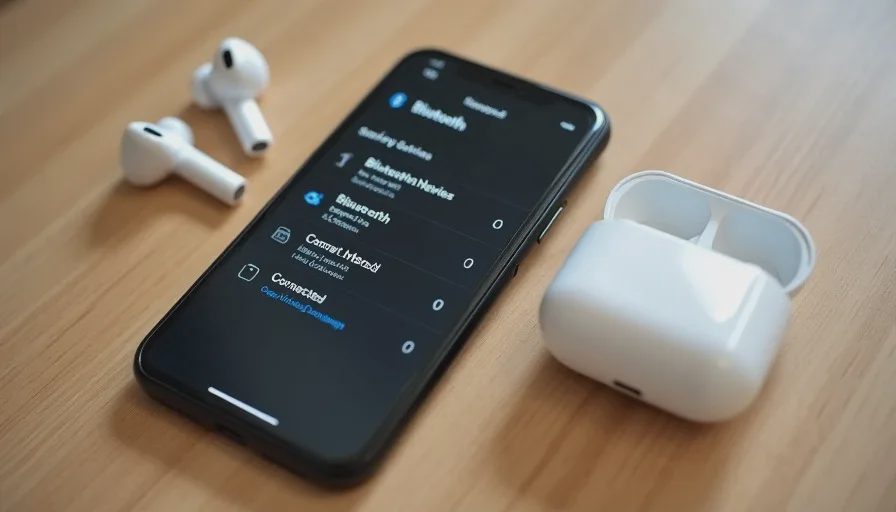
This sequence isolates the problem step by step. In many cases, the issue disappears before you reach the end. When it does not, you at least know which device is the likely cause.
Common Mistakes That Waste Time and Money
Replacing the Earbuds Without Testing the Phone
The earbuds are the easiest thing to blame because they are the newest purchase. But if the phone is old or the environment is crowded, new earbuds may not fix anything. Test with another source before spending money.
Ignoring the Physical Environment
Some rooms are Bluetooth-hostile. A room with thick walls, multiple Wi-Fi networks, and a running microwave can disrupt even the best earbuds. If the problem only happens in one location, the location matters more than the device.
Never Restarting the Devices
Bluetooth stacks are software, and software glitches. A restart fixes a surprising number of connection problems. It is the cheapest diagnostic tool you have, and it is often overlooked.
Assuming Expensive Devices Have Better Bluetooth
Price does not guarantee a better Bluetooth implementation. Some budget devices have excellent connectivity, while some premium devices suffer from firmware bugs. The brand and the specific model matter more than the price tag.
When the Device Actually Is the Problem
Sometimes the Bluetooth device is the source of the issue. If a pair of earbuds drops audio in every location, with every source device, and after a reset, the hardware may be faulty. If a speaker lags with multiple phones and multiple apps, the speaker's Bluetooth module is suspect. The key is evidence across multiple tests, not a single frustrating moment.
A consistent failure across all variables points to the device. A failure that changes with location, source, or app points to something else. Before you conclude the device is defective, gather enough evidence to be sure.
Real-World Example From the Store
I once had a customer return a pair of earbuds three times in three weeks. Each pair had the same complaint: audio drops when walking through a specific intersection. We replaced the earbuds each time, and each time the problem returned. Finally, I asked about the phone. It was a midrange model from several years earlier with an older Bluetooth version. The earbuds were fine. The phone was struggling in a high-interference area. A newer phone solved the problem permanently.
Another customer came in convinced their new speaker was defective because the audio lagged during videos. We tested the speaker with a different phone, and the lag disappeared. The original phone was using a codec with high latency. The speaker was never the problem.
These cases taught me to look at the whole system, not just the device being blamed.
Final Advice: Blame the Chain, Not the Product
Bluetooth problems are rarely as simple as "this device is bad." The connection involves multiple devices, software, codecs, and the surrounding environment. When something goes wrong, the real cause is often in the part you are not looking at.
Before you replace anything, test the chain. Change the source device. Change the location. Restart everything. Update the software. The answer will usually appear.
Buy for how you live, not for how it looks on the spec sheet—and before you blame the earbuds, make sure the phone is not the real problem.