

An anker usb c docking station can turn one laptop connection into a practical desk setup with a monitor, keyboard, mouse, storage drive, wired internet, and charging. That sounds simple, but the right model depends on how you work. A person connecting one 1080p monitor has very different needs from someone running two 4K displays and a full-size laptop. Buy for how you live, not for how it looks on the spec sheet.
Start with the setup you actually need
Before comparing ports, look at the devices that sit on your desk every day. Count your monitors, USB accessories, memory cards, wired network connection, and charging needs. If you use a MacBook Air with one display, a compact hub with HDMI, USB-A, USB-C, and pass-through charging could be enough. If you use a Windows laptop with two monitors, Ethernet, an external SSD, and a webcam, you will likely want a larger desktop dock with more bandwidth and a stronger power adapter.
Anker sells several styles, including small travel hubs and fuller desktop docking stations. The compact options are easier to carry in a laptop bag and often cost less than $50. Larger models commonly land around $100 to $250, depending on display support, power delivery, and port selection. Paying more only makes sense when you will use the extra connections.
For example, a commuter who works from coffee shops may value a short cable, compact aluminum body, and HDMI output more than a card reader. A home-office user may care more about a stable Ethernet port and enough USB ports to avoid reaching behind the monitor every morning. Those are different buying decisions, even if both shoppers search for an anker usb c docking station.

Which ports matter most?
HDMI is the first specification many buyers notice, but it is not the whole story. Check the supported resolution and refresh rate. A dock that handles 4K at 60Hz is a better fit for office work and video than one limited to 4K at 30Hz, which can make cursor movement feel less smooth. For a standard 1080p work monitor, nearly any current model with HDMI should be comfortable.
USB-A remains useful for older keyboards, mice, flash drives, and wireless receiver dongles. USB-C ports can be more versatile, but not every USB-C port carries video or high-speed data. Some are intended only for charging. Read the port labels and product specifications instead of assuming every connector performs the same job.
An Ethernet port is worthwhile if your desk is close to a router or network switch. It can provide a steadier connection for video calls and large downloads than Wi-Fi in a crowded home. A card reader is helpful for photographers, drone owners, and anyone moving files from an SD card. If none of these match your routine, skip them rather than paying for a row of ports you will never touch.
Display support deserves extra attention
Display compatibility is where a docking purchase can become frustrating. Your laptop, dock, cable, monitor, and operating system all play a part. A USB-C port that supports charging and data does not automatically support video. Look for DisplayPort Alt Mode or Thunderbolt compatibility when the manufacturer lists it as a requirement.
MacBook users should also check how many external displays their specific model supports. Some Mac laptops natively support only one external display, so buying a dock with two video outputs does not guarantee two independent screens. Certain docks use DisplayLink technology to add displays, but that usually requires software and can behave differently during protected video playback or after operating system updates.
Windows laptops can offer broader multi-monitor support, but the same rule applies: confirm the laptop's capabilities first. If you want a simple setup, one monitor at 1440p or 4K is easier to configure than two high-resolution screens. An anker usb c docking station is not a magic upgrade for a laptop whose USB-C port lacks the required video function.
Power delivery and daily reliability
Power delivery determines whether your laptop charges while connected. A dock may advertise a high input wattage while reserving some power for its own ports, so the power sent to the computer can be lower. For a lightweight laptop, 65W may be comfortable. A performance notebook with a larger processor or dedicated graphics may need more, especially while running demanding apps.
Use the included charger when possible, and compare its wattage with the dock's pass-through limit. If your computer slowly loses battery during a busy work session, the dock may not be supplying enough power even though the screen and accessories work normally. That is not necessarily a defect; it can simply be a mismatch between the laptop and the dock.
Build quality matters in small ways. A stiff cable can pull a lightweight laptop across the desk. A dock with a short captive cable may be neat at home but awkward when your laptop's USB-C port is on the opposite side. Anker generally focuses on compact, tidy accessories, but the best design is the one that fits your actual desk and bag.
Choosing between a travel hub and a desktop dock
A travel hub is the sensible choice when you move between a home office, workplace, classroom, and hotel room. It can add HDMI, USB, and charging without taking much space. Keep one in your laptop sleeve and you avoid carrying separate adapters. The tradeoff is fewer ports, less room for cable management, and sometimes lower charging capacity.
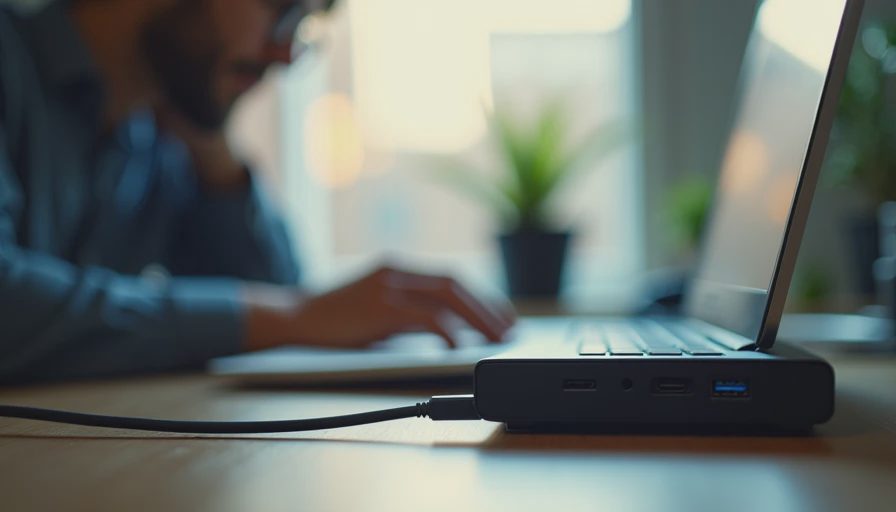
A desktop dock is better when your laptop is the center of a mostly permanent workstation. You can leave the monitor, Ethernet cable, webcam, speakers, and accessories connected, then attach one USB-C cable when you sit down. That single-cable routine is the main benefit. An anker usb c docking station can make a messy setup feel almost like a desktop computer, but only if its port layout matches your equipment.
Think about the one annoying action you repeat. If you unplug five cables every morning, a desktop dock is likely worth the price. If you only need to connect a projector twice a month, a compact hub is more sensible. A larger dock is not automatically an upgrade; it can be extra weight and extra cost with no practical benefit.
Common buying mistakes to avoid
The biggest mistake is shopping by port count. Ten ports sound better than six, but a dock with two unused video outputs will not improve a basic desk. Another mistake is ignoring the included power adapter. A low-cost model may require you to supply a compatible laptop charger, which changes the real purchase price.
Do not buy based only on a product photo. Confirm whether USB ports are USB 2.0 or faster, whether HDMI supports your preferred refresh rate, and whether the dock supports your laptop's operating system. Read return terms too. A setup can look compatible until it meets a particular monitor, cable, or security policy.
For a straightforward home office, prioritize one reliable video output, 65W or better pass-through charging, two or more useful USB ports, and a cable that reaches comfortably. For creative work, add fast storage connections and a card reader. For travel, prioritize size and durability. This approach keeps an anker usb c docking station from becoming an expensive drawer accessory.
Is an Anker dock right for you?
Anker is a reasonable starting point for shoppers who want recognizable accessories, a wide selection, and a cleaner path than mixing several inexpensive adapters. The brand is not a substitute for checking compatibility, and a premium model is not automatically necessary. A simpler dock can be the better purchase when your routine is simple.
Here is who this makes sense for: a hybrid worker who wants one-cable laptop connections, a student who switches between a laptop and monitor, or a traveler who needs HDMI and USB without carrying a bag of dongles. It is less compelling if your laptop already has every port you use or if you need specialized workstation features that require Thunderbolt hardware.
Before buying, write down your laptop model, monitor resolution, charger wattage, and the accessories you connect most often. Then compare those needs against the dock's exact specifications. That five-minute check is more valuable than chasing the biggest port count. If the fit is right, an anker usb c docking station can remove daily friction without turning your desk into a technology project.